

Intercept User Guide
Everything a new consultant needs to look up carriers, find prospects, and watch customers for new roadside inspections.
1. Getting started
- Open Intercept from the Synergy portal, or go to intercept.synergysafetygroup.com.
- If you see "Consultant sign-in required", click Go to the portal or type the staff passcode and click Sign in.
- Use the menu at the top to move between Carrier lookup, Target Finder, Saved lists, Monitoring and this Guide. On a phone, tap the menu icon at the top right.
All data comes from public FMCSA records. New inspections usually appear a day or two after they happen.
2. Carrier Lookup
See a carrier's CSA BASIC scores, inspections, violations and crashes.
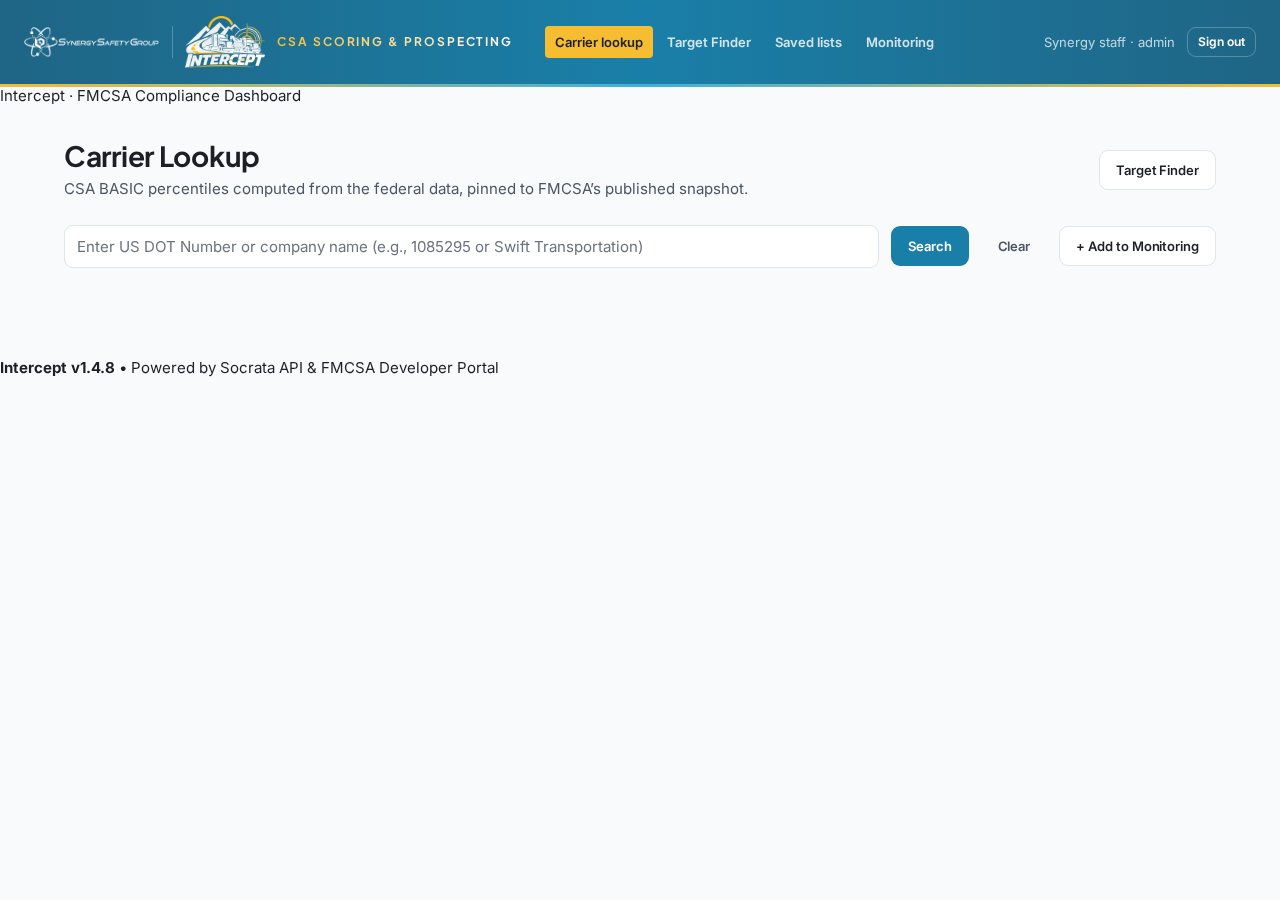
- Type a DOT number (e.g. 1592966) or part of a company name (e.g. "colorado drywall supply").
- Click Search. For a name search, pick the right carrier from the list of matches.
- Click Clear to start over, or Print Snapshot for a one-page summary.
- Click + Add to Monitoring to start watching this carrier for new inspections.
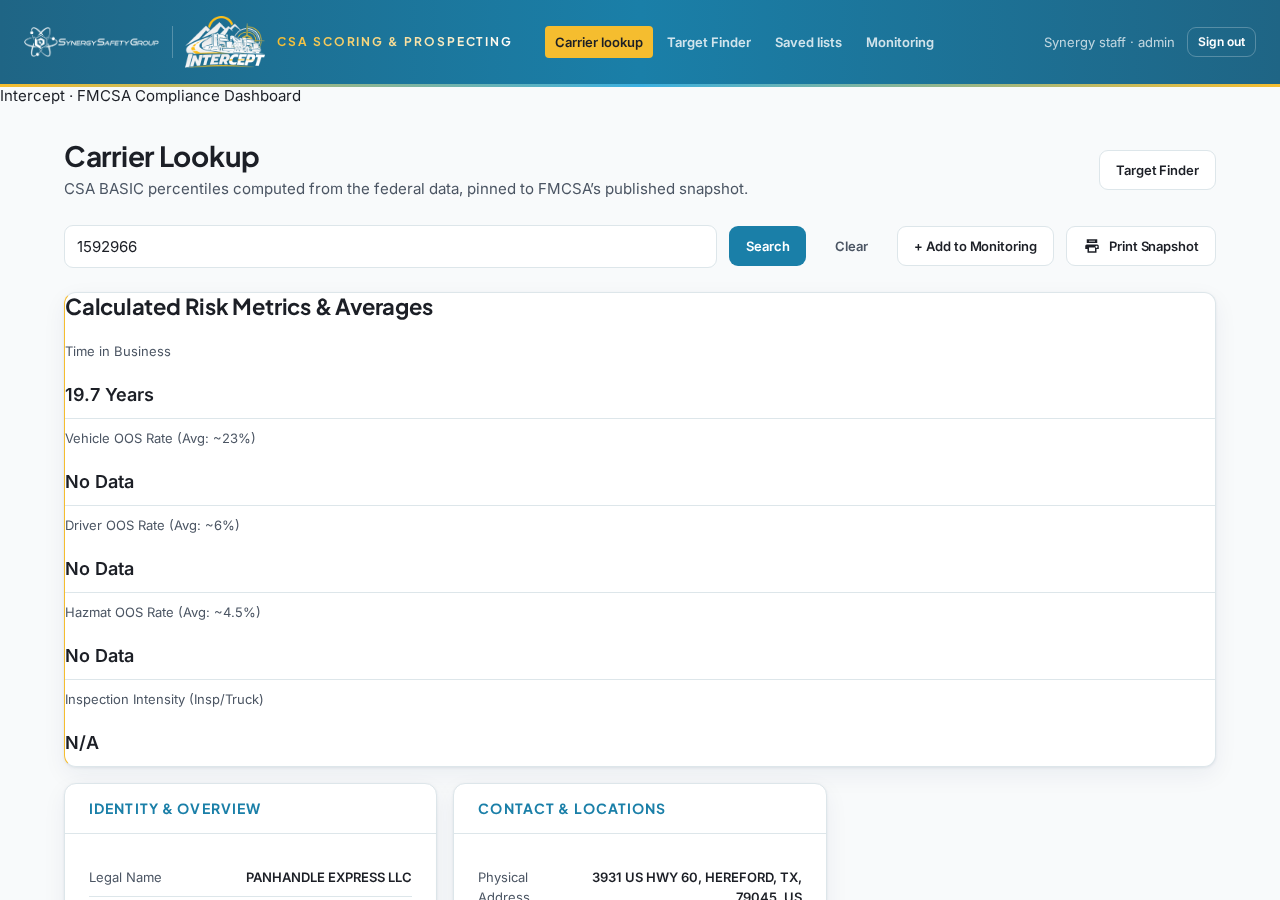
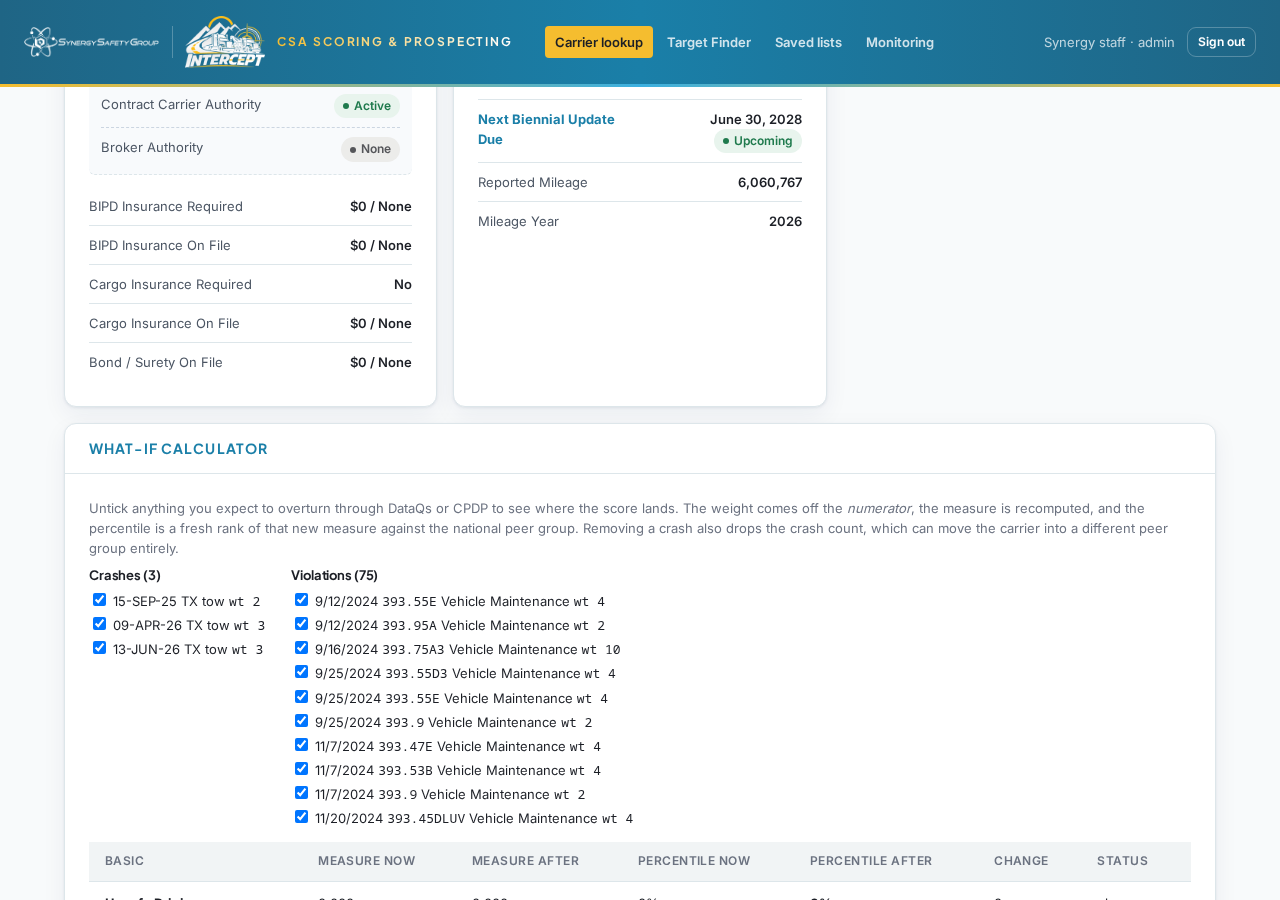
Scroll down to find these sections:
- Calculated Risk Metrics – time in business, out-of-service rates vs national averages.
- Identity / Contact – legal name, address, phone, fleet size.
- CSA BASICs – percentile for each BASIC; red means over the intervention threshold.
- Recent Inspections – each roadside inspection with vehicles and violations.
- Raw SMS BASIC Violations – every scored violation with its code and weight.
- Crashes – recent crash reports and the Crash Indicator.
3. Line details, Print & PDF
- Click any line in any table (inspections, violations, crashes, monitoring alerts).
- A window opens with the full report: At a glance, Where & when, Inspection results, each truck and trailer, and every violation cited.
- Click Download PDF for a branded report, or Print.
- Close with the ×, the Esc key, or by clicking outside the window.
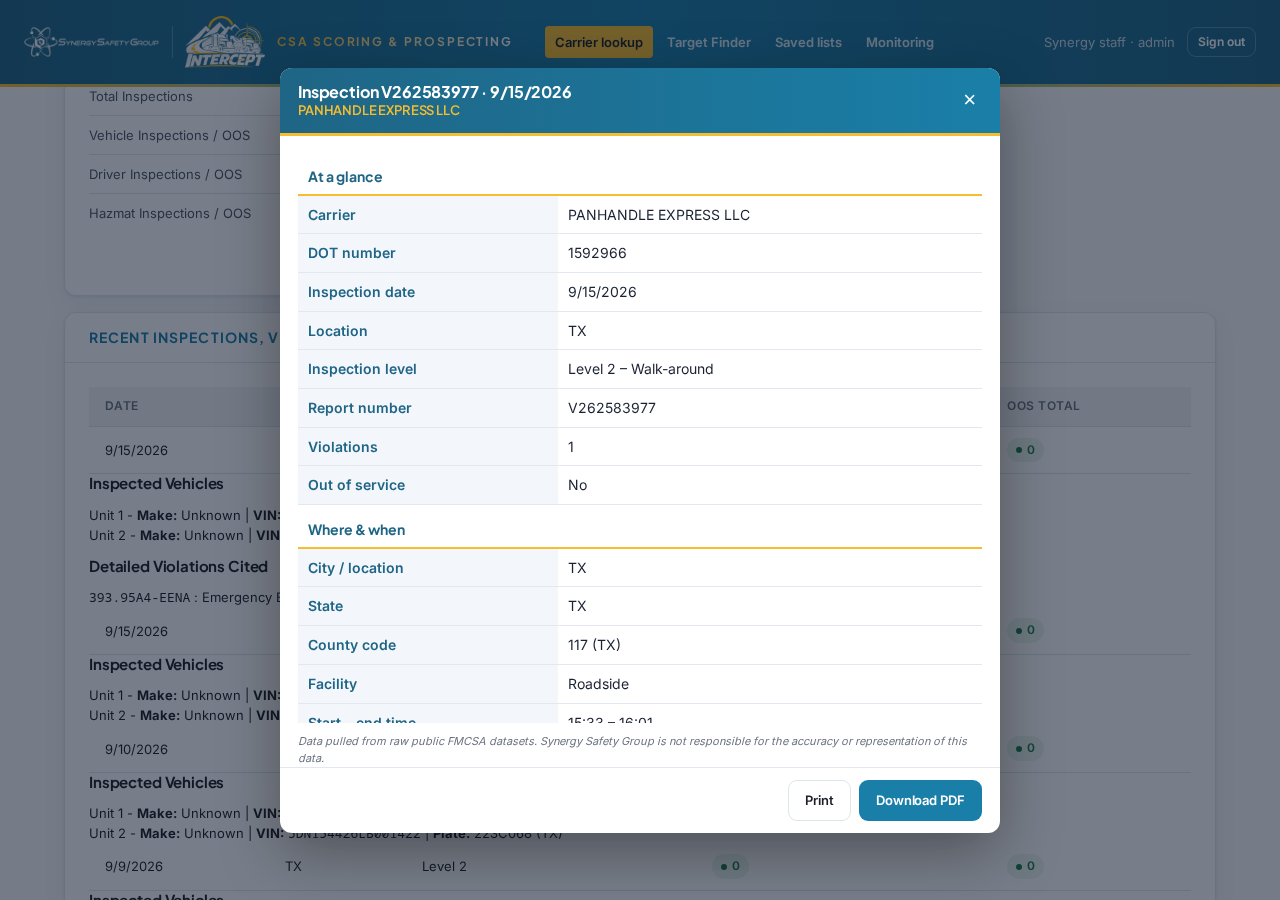
Driver names are not in public FMCSA data, so reports show only which violations were charged to the driver.
4. Target Finder
Find prospect carriers by state and risk.
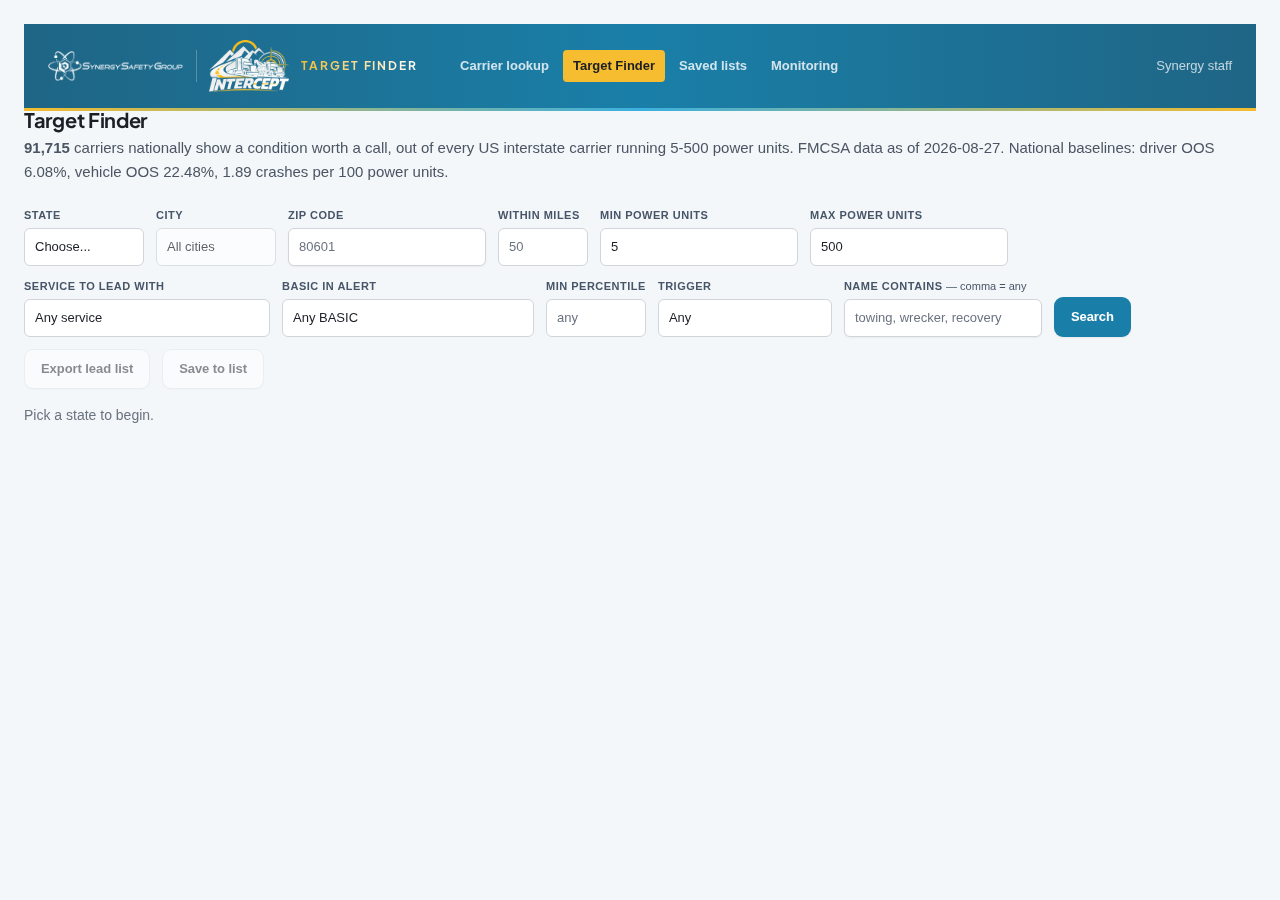
- Pick a state and set filters (fleet size, BASIC scores, crash rate, keywords).
- In the keyword box, separate words with commas to match any (e.g. towing, wrecker). Put a minus in front to exclude (-bus).
- Sort by clicking a column heading. FATAL badges mark carriers with fatal crashes.
- Click a carrier to open its prospect report, or tick carriers and save them to a list.
5. Saved lists
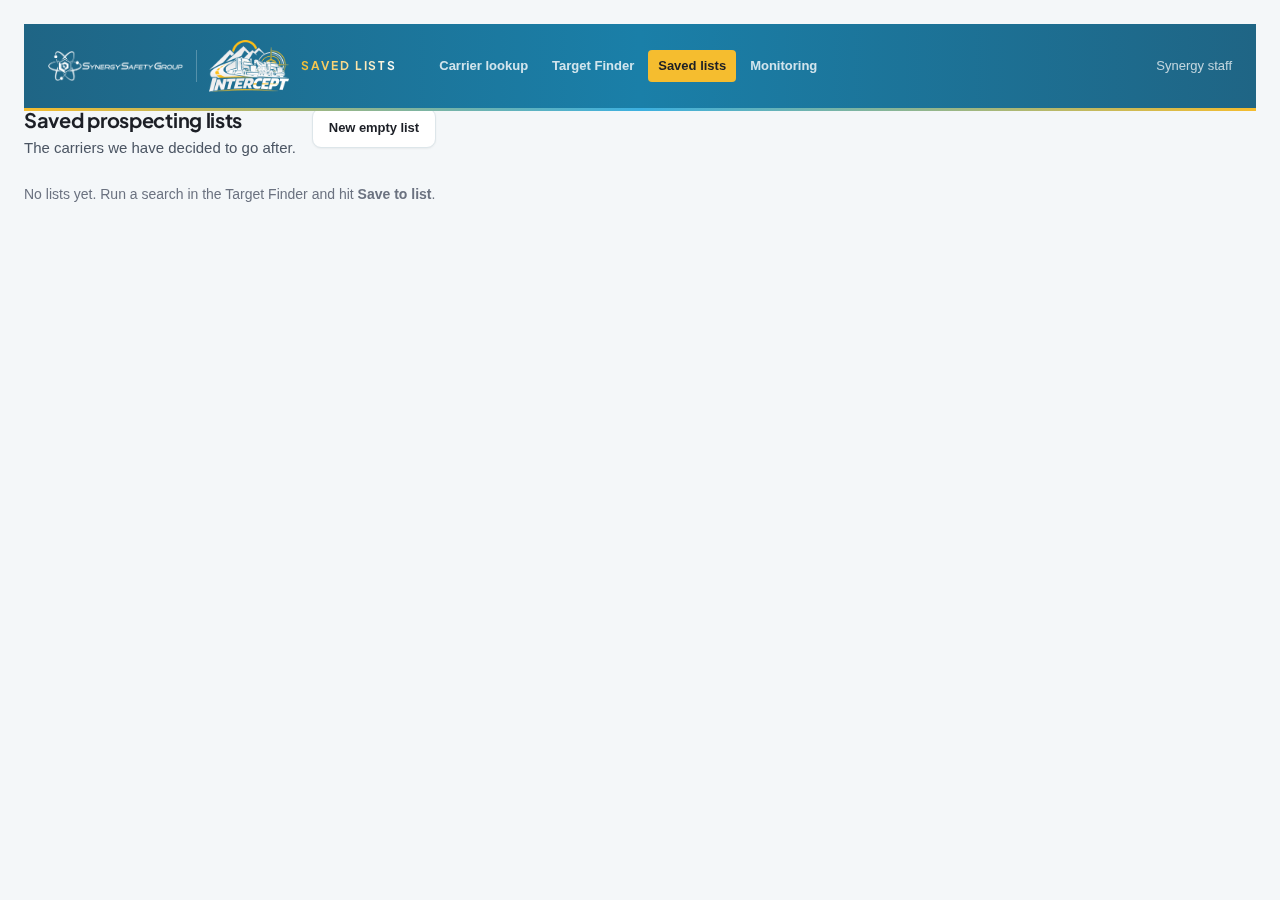
- Open Saved lists to see lists created from Target Finder.
- Click a list to open it, review carriers, and remove ones you don't need.
- Open a carrier's prospect report to research it or draft an outreach email.
6. Monitoring & email alerts
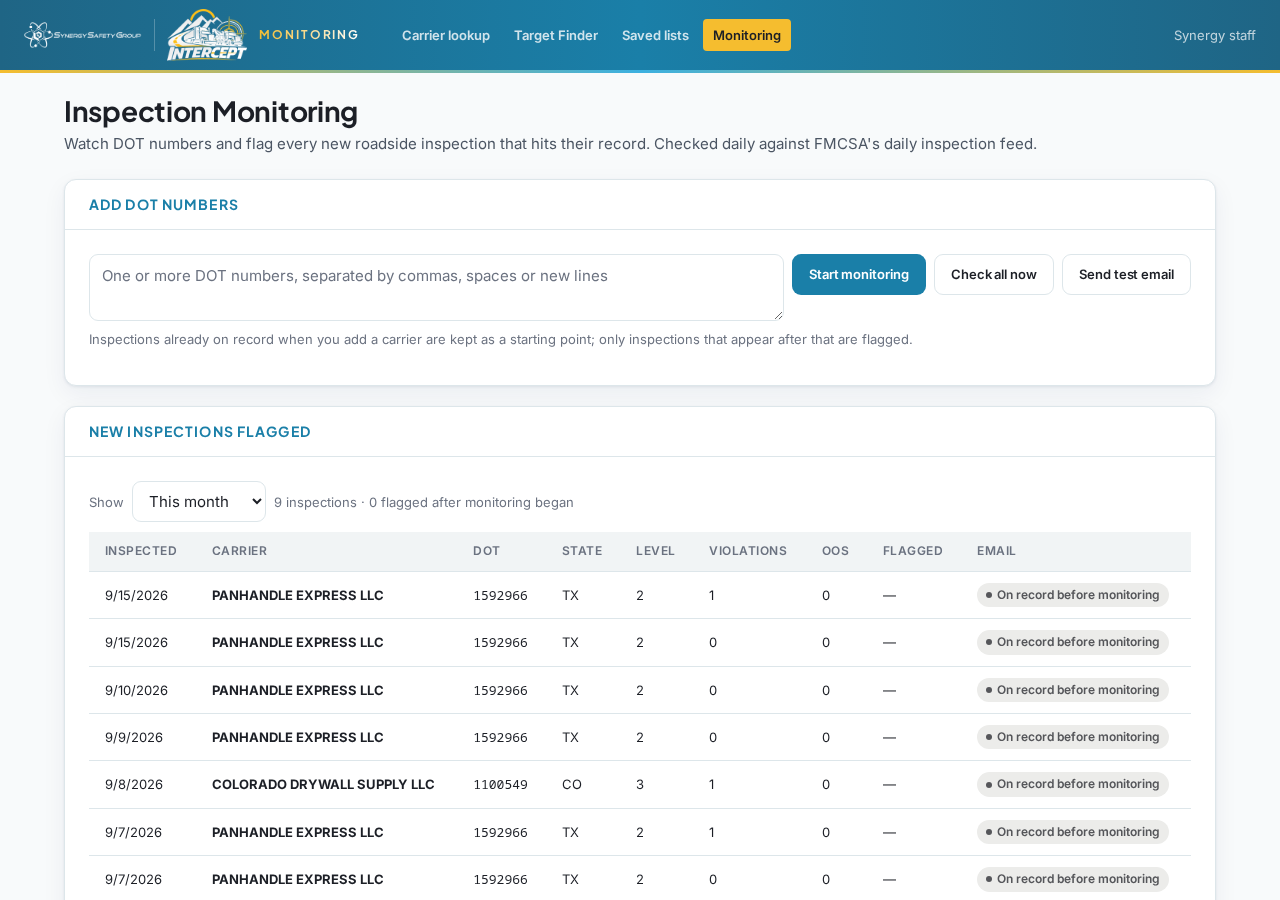
Watch customers and get an email for every new roadside inspection.
Add carriers
- Type one or more DOT numbers in Add DOT numbers (commas, spaces or new lines).
- Click Start monitoring. Inspections already on record are saved as a starting point; only later ones trigger emails.
- Or use + Add to Monitoring in Carrier Lookup.
Review flagged inspections
- Use Show to switch between This month, Last 30 days, or All.
- Click an inspection line for the full report and PDF.
- The Email column shows whether the alert was sent.
Manage monitored carriers
- Click the DOT number to open that carrier in Carrier Lookup.
- Check runs a check on one carrier now; Check all now runs all.
- Remove stops monitoring and deletes its flagged inspections.
- Send test email sends a sample alert.
Checks run automatically every day at 7am Denver time. Each alert email has a "Download inspection PDF" button (you must be signed in).
7. Tips & FAQ
- Name search finds nothing? Try fewer words, e.g. "drywall supply".
- Location says "Not published"? FMCSA didn't release it for that inspection.
- Violations "Details not yet published"? Very new inspections fill in within a few days.
- Scores differ slightly from FMCSA's site? Intercept calculates from raw data pinned to FMCSA's latest snapshot.